A slow WordPress site costs you visitors, rankings and sales. People leave pages that take too long to load, and Google uses page experience signals when ranking sites.
You are not alone if your site feels sluggish. Only about 45% of WordPress sites on mobile reach “good” Core Web Vitals scores, according to HTTP Archive’s 2025 Web Almanac (as summarized by Web60).
The good news: most slow WordPress sites suffer from the same handful of problems. This guide shows you how to find out what is slowing your site down, then walks through 12 fixes that actually work.
Why Is My WordPress Site Slow? The Short Answer
Most slow WordPress sites have one or more of these problems:
- Cheap or overloaded hosting
- No page caching
- Large, uncompressed images
- Too many plugins, or a few heavy ones
- A bloated theme or page builder
- Too many third-party scripts (chat widgets, trackers, ads)
- An outdated PHP version
- A cluttered database
Before you change anything, measure your speed so you know what to fix and can prove it worked.
Step 1: Test Your Site Speed First
Run your homepage and one or two key pages through these free tools:
- PageSpeed Insights (pagespeed.web.dev): shows real-user Core Web Vitals data and specific recommendations.
- Google Search Console: the Core Web Vitals report shows which groups of pages pass or fail.
- GTmetrix or WebPageTest: show a “waterfall” of every file your page loads, so you can spot the slow ones.
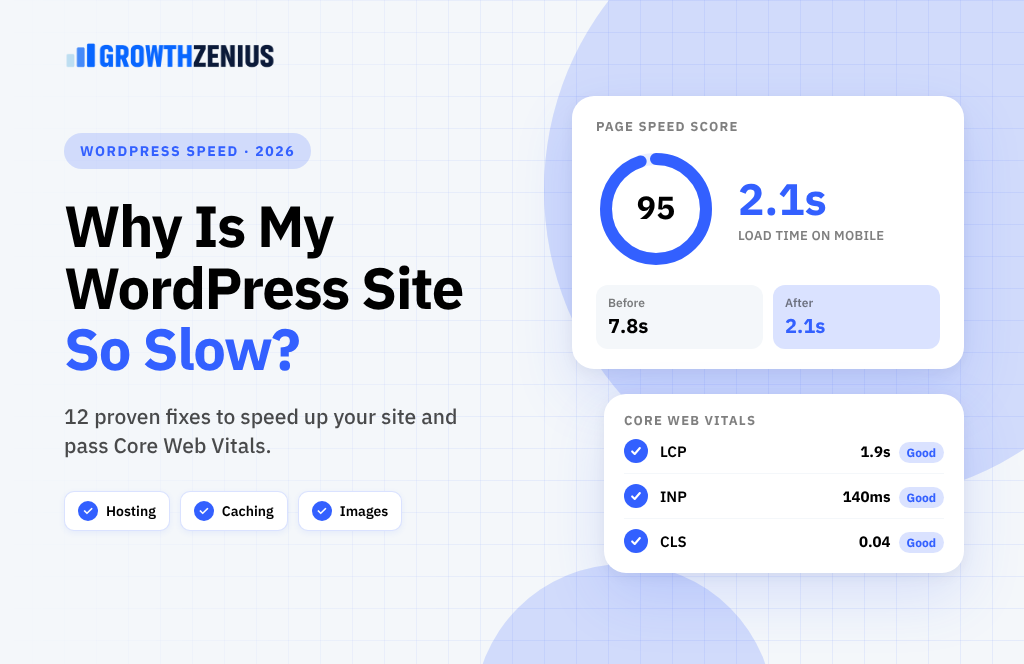
Focus on the three Core Web Vitals. These are the targets Google considers “good”:
| Metric | What it measures | Good score | Common WordPress cause |
|---|---|---|---|
| LCP (Largest Contentful Paint) | How fast the main content appears | Under 2.5 seconds | Slow hosting, large hero images, no caching |
| INP (Interaction to Next Paint) | How fast the page responds to clicks and taps | Under 200 milliseconds | Heavy JavaScript from plugins and page builders |
| CLS (Cumulative Layout Shift) | How much the layout jumps while loading | Under 0.1 | Images without sizes, late-loading fonts and ads |
Test on mobile, not just desktop. Most visitors are on phones, and mobile scores are usually much worse.
Fix 1: Upgrade to Better Hosting
Hosting is the foundation of your site’s speed. Cheap shared hosting puts hundreds of sites on one server. When a neighbor gets busy, your site slows down too.
Signs your hosting is the problem: a slow “Time to First Byte” (TTFB) in your speed test, or a site that is slow even on simple pages.
Look for managed WordPress hosting or a quality cloud host that offers server-level caching, a recent PHP version, NVMe/SSD storage and a data center close to your customers. Upgrading hosting is often the single biggest speed improvement you can make.
Fix 2: Turn On Page Caching
Without caching, WordPress builds every page from scratch for every visitor. Caching saves a ready-made copy of each page and serves it instantly.
Many managed hosts include caching at the server level. If yours does not, use a caching plugin such as WP Rocket, LiteSpeed Cache (on LiteSpeed servers), W3 Total Cache or WP Super Cache. Use only one caching plugin at a time.
For busy or dynamic sites (like WooCommerce stores), also ask your host about object caching with Redis or Memcached. It speeds up database queries.
Fix 3: Compress and Resize Your Images
Images are usually the heaviest part of a web page. A single 4 MB photo straight from a phone can slow a page down more than everything else combined.
- Resize images to the size they will be shown on screen before uploading.
- Compress them with a plugin such as ShortPixel, Imagify, EWWW or Smush.
- Convert to WebP or AVIF formats, which are much smaller than JPG and PNG.
- Always set width and height on images so the layout does not jump (this helps CLS).
Fix 4: Lazy-Load Images, But Not Your Hero Image
Lazy loading means images further down the page only load when a visitor scrolls to them. WordPress adds lazy loading to most images by default.
The common mistake: lazy-loading the main image at the top of the page. That delays your LCP score. Make sure your hero or featured image loads immediately. Many performance plugins let you exclude the first image from lazy loading, or add fetchpriority="high" to it.
Fix 5: Remove Plugins You Don’t Need
It is not just the number of plugins that matters. One badly coded plugin can slow your site more than 20 well-built ones. But every plugin that loads its own CSS and JavaScript on every page adds weight.
- Delete plugins you no longer use, rather than just deactivating them.
- Replace several single-purpose plugins with one that does the job well.
- Use a tool like Query Monitor to find plugins that run slow database queries.
- Check if a plugin loads its files on pages where it is not needed (for example, a contact form plugin loading on every blog post). Tools like Perfmatters or Asset CleanUp can switch these off per page.
Fix 6: Use a Lightweight Theme
Some multipurpose themes load sliders, animations, icon fonts and dozens of scripts on every page, even if you only use a few features.
Lightweight themes such as GeneratePress, Kadence, Astra, Blocksy or a block theme built for the Site Editor give you a fast starting point. If you are planning a redesign, choose speed from the start. Switching themes on a live site later is a bigger job.
Fix 7: Rethink Heavy Page Builders
Page builders make design easy, but some add a lot of extra code, nested HTML and JavaScript. This can hurt LCP and especially INP.
If you use one, turn on its built-in performance options (such as improved asset loading and reduced DOM output) and avoid stacking many animated widgets. For new pages, the WordPress block editor (Gutenberg) usually produces much lighter pages.
Fix 8: Update to a Recent PHP Version
PHP is the language WordPress runs on. Newer versions are faster and more secure. WordPress currently recommends PHP 8.3 or greater (WordPress.org requirements).
You can usually change your PHP version in your hosting control panel. Back up your site and test on a staging copy first, because very old plugins or themes may not be compatible.
Fix 9: Use a CDN
A Content Delivery Network (CDN) stores copies of your images, CSS and JavaScript on servers around the world. Visitors download them from the closest location, which cuts loading time.
Cloudflare offers a free plan, and many hosts include a CDN. A CDN helps most when your visitors are spread across different countries or far from your server.
Fix 10: Minify and Defer CSS and JavaScript
Minifying removes spaces and comments from code files so they download faster. Deferring tells the browser to load non-essential JavaScript after the main content, so the page appears sooner.
Most caching and performance plugins can do this for you. Turn options on one at a time and check your site after each change. Settings like “delay JavaScript” or “remove unused CSS” are powerful but can break menus, sliders or forms if applied too aggressively.
Fix 11: Limit Third-Party Scripts
Chat widgets, social media feeds, tracking pixels, heatmap tools, ad scripts and embedded videos all load code from other servers. Each one adds requests and can block the page from responding to clicks.
- Remove tracking tools you no longer check.
- Load chat widgets only after a delay or when a visitor clicks a button.
- Replace embedded YouTube videos with a lightweight preview image that loads the player only when clicked.
- Host Google Fonts locally, or use system fonts, instead of loading them from external servers.
Fix 12: Clean Up Your Database
Over time, the WordPress database fills up with old post revisions, spam comments, expired temporary data (transients) and leftovers from deleted plugins. A bloated database makes queries slower.
- Use a plugin such as WP-Optimize or Advanced Database Cleaner to remove old data.
- Limit post revisions by adding
define( 'WP_POST_REVISIONS', 5 );to your wp-config.php file. - Always take a full backup before cleaning your database.
Quick Reference: Which Fix Solves Which Problem?
| Problem in your speed test | Start with these fixes |
|---|---|
| Slow server response (high TTFB) | 1. Better hosting, 2. Caching, 8. PHP version |
| Poor LCP (slow main content) | 1. Hosting, 2. Caching, 3. Images, 4. Hero image, 9. CDN |
| Poor INP (slow to respond) | 5. Plugins, 7. Page builders, 10. JavaScript, 11. Third-party scripts |
| Poor CLS (layout jumps) | 3. Image sizes, 11. Fonts and embeds |
| Slow admin dashboard | 1. Hosting, 5. Plugins, 12. Database |
Common Mistakes to Avoid
- Installing two caching or optimization plugins at once. They conflict and can break your site.
- Chasing a perfect 100 score. Real-user Core Web Vitals matter more than a lab score. Aim to pass all three metrics.
- Only testing the homepage. Blog posts, product pages and landing pages are often slower.
- Making changes on a live site without a backup. Use a staging site for big changes.
- Ignoring mobile. Your desktop score can look great while mobile visitors wait.
Frequently Asked Questions
How fast should a WordPress site load?
Aim for your main content to appear in under 2.5 seconds on mobile (Google’s “good” LCP threshold), and for your page to pass all three Core Web Vitals.
Do too many plugins slow down WordPress?
The quality of plugins matters more than the number. One poorly built plugin can slow your site more than many lightweight ones. Remove anything you do not use, and test heavy plugins with Query Monitor.
Why is my WordPress admin dashboard slow?
A slow dashboard usually points to weak hosting, heavy plugins running in the background, or a bloated database. Caching plugins do not speed up the admin area.
Will a CDN fix a slow WordPress site on its own?
Rarely. A CDN speeds up static files like images and scripts, but it will not fix slow hosting, missing caching or heavy plugins. Use it alongside the other fixes.
Does site speed affect SEO?
Yes. Core Web Vitals are part of Google’s page experience signals. Speed also affects bounce rate and conversions, which matter even more for your business.
Is WP Rocket worth it?
For many sites, a premium caching plugin like WP Rocket is an easy win because it combines caching, file optimization and lazy loading in one tool. If your host already provides server caching, check their recommendations first to avoid conflicts.
Get Your Speed Back
A slow WordPress site is almost always fixable. Start by testing, then work through the fixes in order: hosting, caching and images usually give the biggest gains. After that, trim plugins, scripts and code to improve how quickly your site responds.
Need a faster site without the trial and error? Growth Zenius builds and speed-optimizes WordPress websites for small businesses. Book a free WordPress speed audit and we’ll show you exactly what is slowing your site down and how to fix it.